Flow 3: Sync Line Item Edits
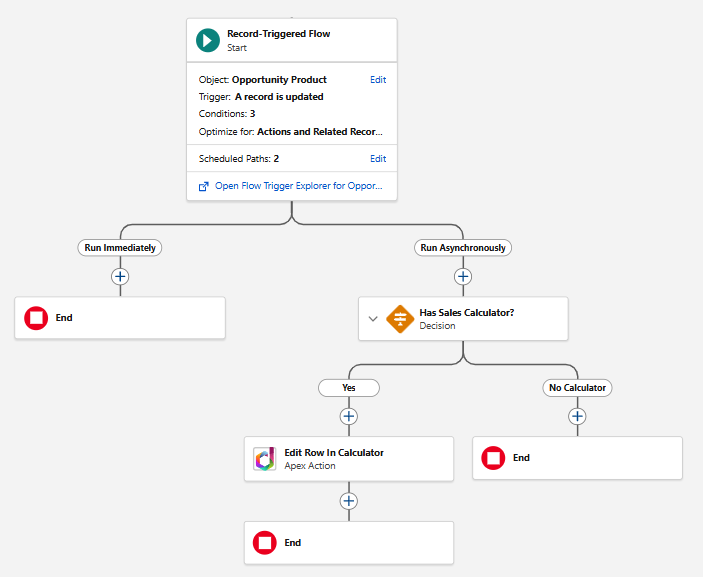
This flow fires when a product's Quantity, Unit Price, or Discount is changed. It finds the matching row in the Opportunity Products data sheet by the line item's Salesforce ID (column A) and updates the data columns.
Create the Flow
- Go to Setup > Flows > New Flow.
- Select Record-Triggered Flow.
- Configure the trigger:
- Object: Opportunity Product (OpportunityLineItem)
- Trigger the flow when: A record is updated
- Condition requirements: select Any Condition Is Met (OR)
- Conditions:
Quantity- Is Changed - TrueUnitPrice- Is Changed - TrueDiscount- Is Changed - True
- Optimize the flow for: Actions and Related Records
- Add an async scheduled path.
Check for Calculator
- Add a Decision element on the async path to check for the calculator spreadsheet - same as in the line item creation flow.
Build the Criteria and Updates
- Create the following formula resources:
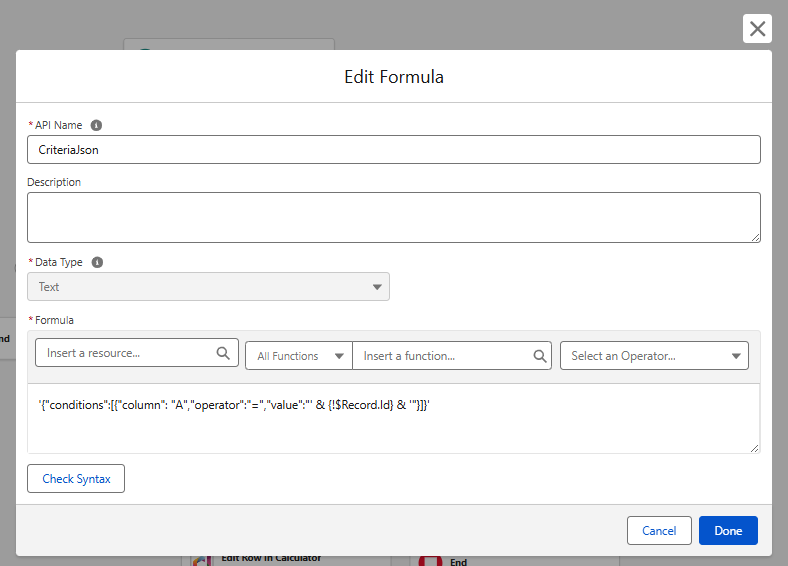
CriteriaJson (Text) - matches the row by OpportunityLineItem ID in column A. See Row Matching Criteria for the full criteria format reference.
'{"conditions":[{"column": "A","operator":"=","value":"' & {!$Record.Id} & '"}]}'
DiscountValue (Number, scale 2) - same as in the previous flow.
IF(ISBLANK({!$Record.Discount}), 0, {!$Record.Discount})
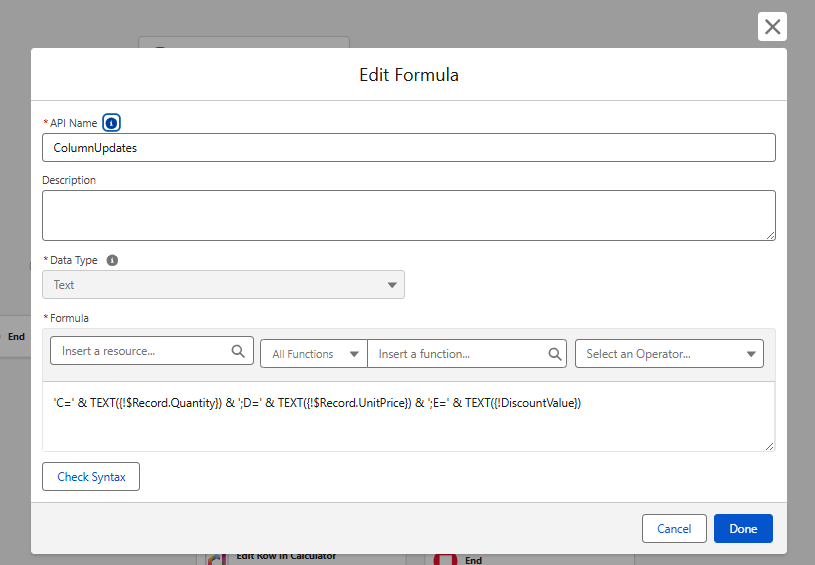
ColumnUpdates (Text) - updates only the data columns. The format is Column=Value pairs separated by semicolons - see the Edit Rows in Sheet action reference for details.
'C=' & TEXT({!$Record.Quantity}) & ';D=' & TEXT({!$Record.UnitPrice}) & ';E=' & TEXT({!DiscountValue})
- Add an Action element:
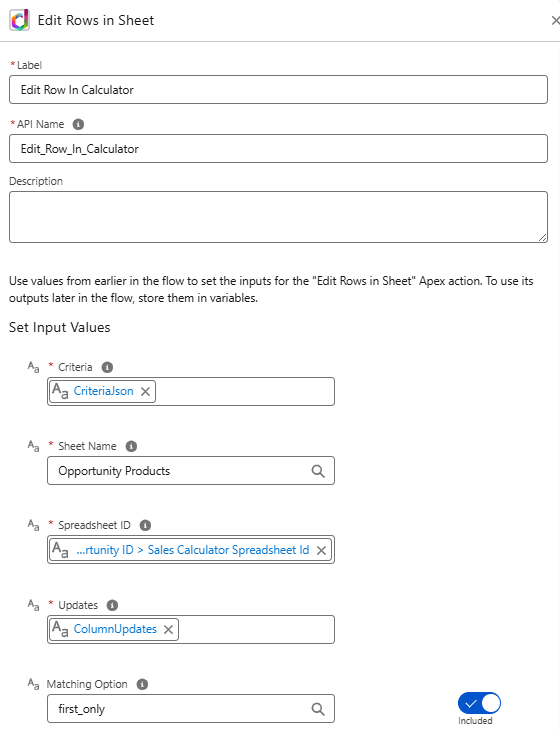
- Action:
Edit Rows in Sheet(DriveMate) - Spreadsheet ID:
{!$Record.Opportunity.SalesCalculatorSpreadsheetId__c} - Sheet Name:
Opportunity Products - Criteria:
{!CriteriaJson} - Updates:
{!ColumnUpdates} - Matching Option:
first_only
- Action:
The Sales Calculator sheet recalculates automatically when the data columns change - there is nothing to update on the data sheet beyond the raw values. Column F (Default Unit Cost) does not change when a line item is edited, since it comes from the Product record.
- Save the flow as
Sales Calculator: Sync Line Item Editsand Activate it.