Flow 2: Sync Line Item Creation
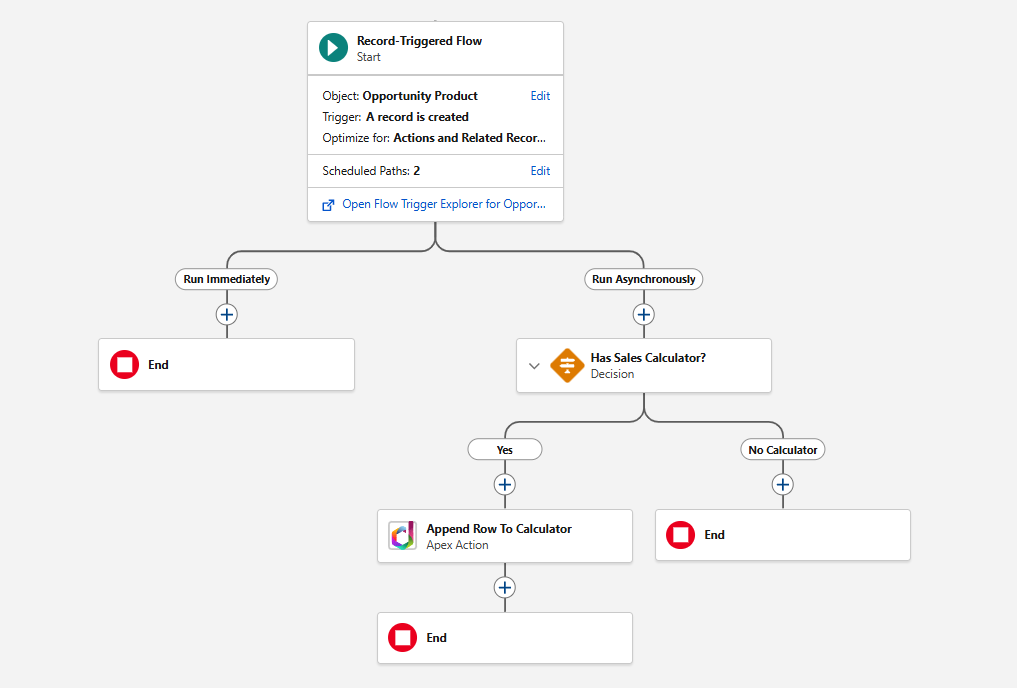
This flow fires when a product (OpportunityLineItem) is added to an Opportunity. It appends a new row to the Opportunity Products data sheet with the product details.
Create the Flow
- Go to Setup > Flows > New Flow.
- Select Record-Triggered Flow.
- Configure the trigger:
- Object: Opportunity Product (OpportunityLineItem)
- Trigger the flow when: A record is created
- Optimize the flow for: Actions and Related Records
- Add an async scheduled path (Run Asynchronously - immediately after save).
Check for Calculator
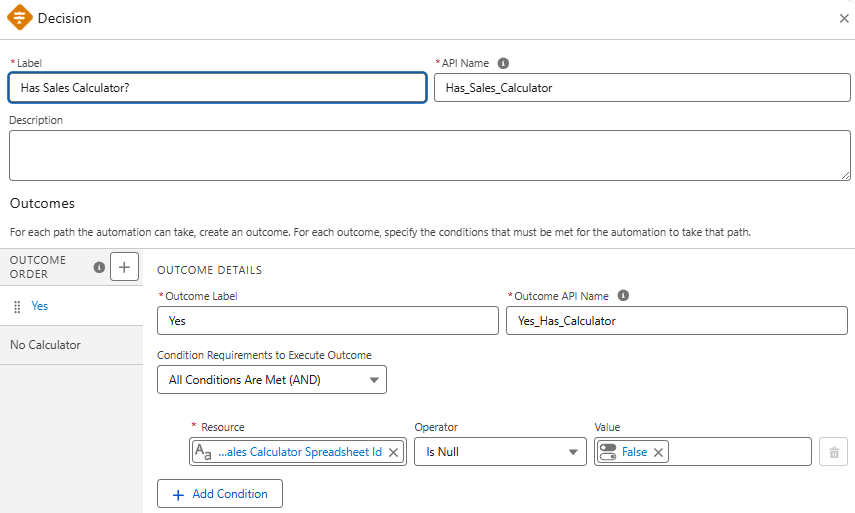
- Add a Decision element on the async path:
- Outcome "Yes":
{!$Record.Opportunity.SalesCalculatorSpreadsheetId__c}is null =False - Default Outcome: "No Calculator" (flow ends)
- Outcome "Yes":
Build the Row Values and Append
- Create the following formula resources:
DiscountValue (Number, scale 2):
IF(ISBLANK({!$Record.Discount}), 0, {!$Record.Discount})
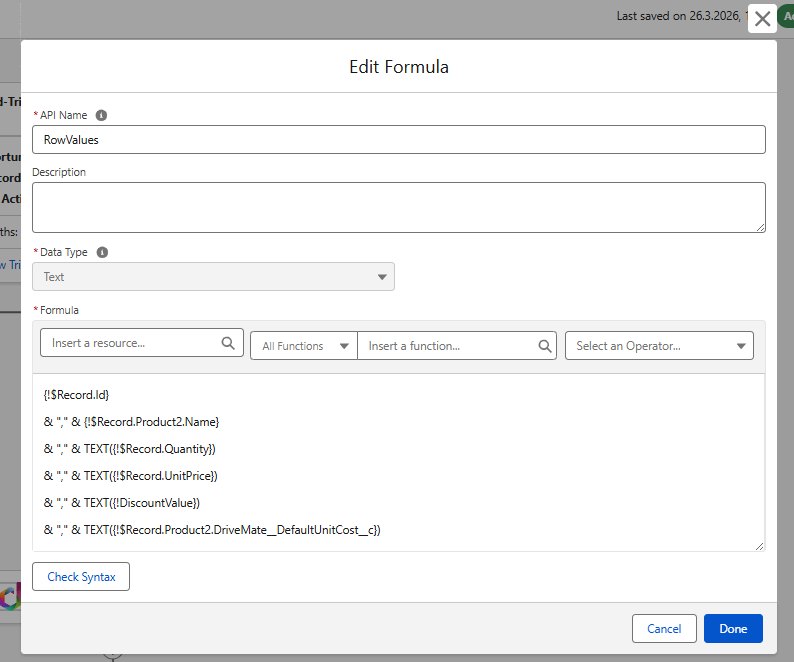
RowValues (Text) - constructs the comma-separated row of plain data values:
{!$Record.Id}
& "," & {!$Record.Product2.Name}
& "," & TEXT({!$Record.Quantity})
& "," & TEXT({!$Record.UnitPrice})
& "," & TEXT({!DiscountValue})
& "," & TEXT({!$Record.Product2.DefaultUnitCost__c})
No formulas needed
Unlike a build-from-scratch approach, the row contains only plain data values - no Google Sheets formula strings. All calculations (margins, commissions, what-if scenarios) are handled by the template's own formulas on the Sales Calculator sheet, which reference this data sheet automatically.
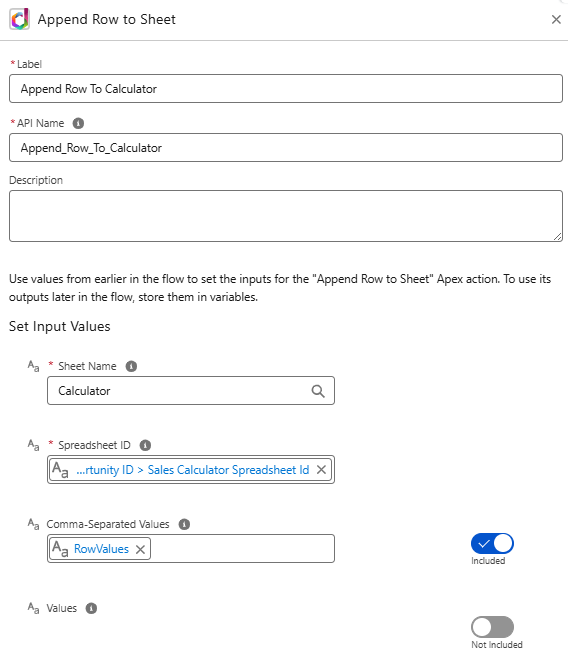
- Add an Action element:
- Action:
Append Row to Sheet(DriveMate) - Spreadsheet ID:
{!$Record.Opportunity.SalesCalculatorSpreadsheetId__c} - Sheet Name:
Opportunity Products - Comma-Separated Values:
{!RowValues}
- Action:
- Save the flow as
Sales Calculator: Sync Line Items Creationand Activate it.