DriveMate 3.7
New Features
Sheets Integration
DriveMate 3.7 introduces a new Google Sheets integration module for Flow and Apex automations. You can now create and manage spreadsheets, keep row data synchronized with Salesforce, and support advanced spreadsheet use cases with a template-based approach.
Available Actions
- Create Spreadsheet
- Create Spreadsheet with Data
- Create Sheet
- Append Row to Sheet
- Append Rows to Sheet
- Edit Rows in Sheet
- Delete Row from Sheet
- Delete Rows from Sheet
- Delete Rows by Criteria
- Delete Rows by Criteria (Async)
- Show or Hide Sheet
Note: See Sheets Automations for the full up-to-date list of all Sheets actions.
Sample Use Case and Implementation Flow
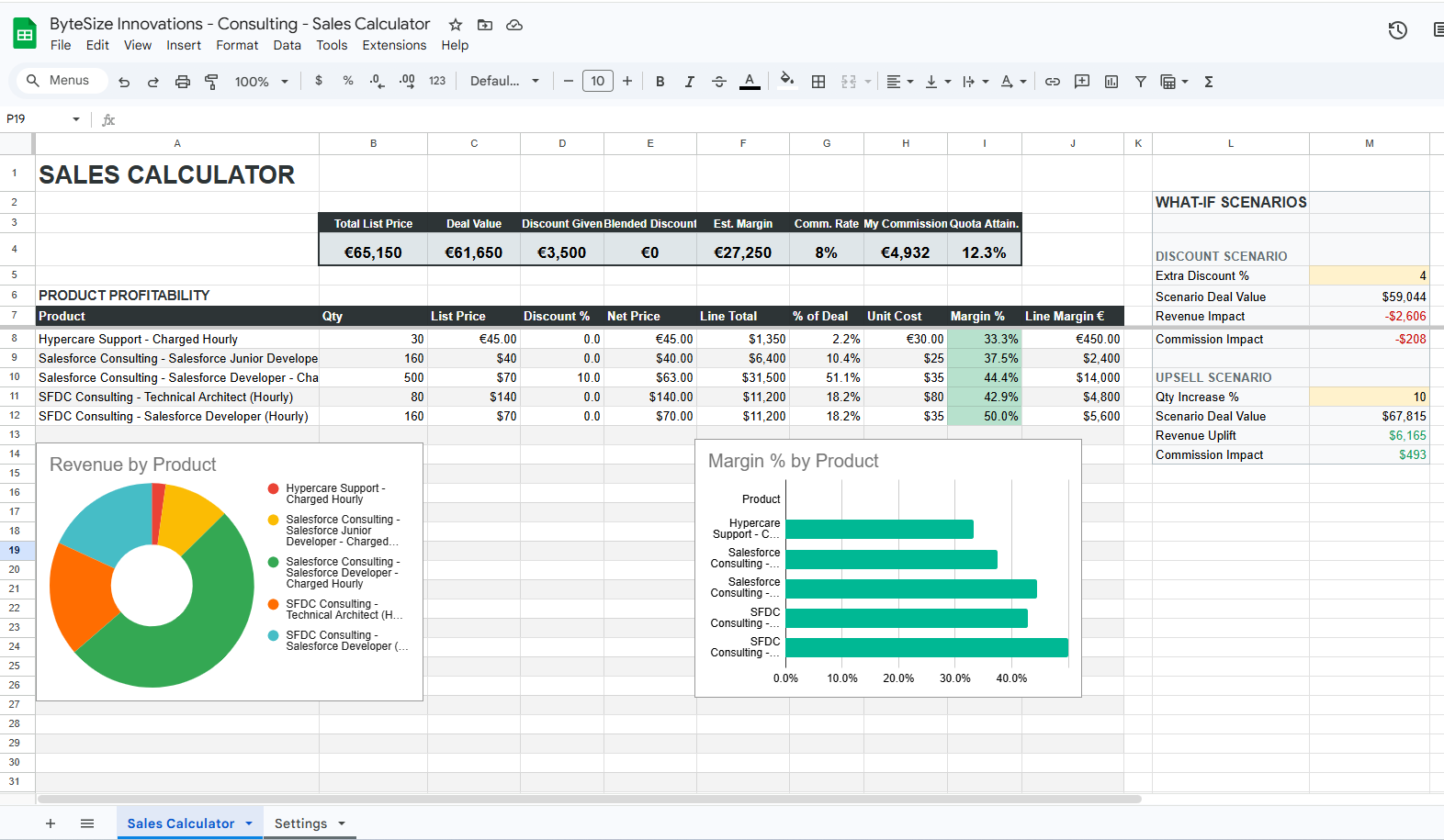
The end-to-end implementation of a sample use case is documented in Record Sync Example - Sales Calculator.
Use a template-driven flow to generate a spreadsheet per business record and keep it in sync:
- Design a Google Sheets template with presentation sheets (for users) and a dedicated hidden data sheet (for Salesforce-managed sync data).
- When a new parent record is created (for example, Opportunity), copy the template to the target Drive folder and store the copied spreadsheet ID on the Salesforce record.
- On child-record creation events, append a new row into the hidden data sheet in the copied spreadsheet.
- On child-record updates, edit matching rows in that same hidden data sheet using a stable key (for example, Salesforce record ID).
- On child-record deletion, remove the matching rows from the hidden data sheet; formulas, dashboards, and charts on visible sheets recalculate automatically.
This keeps Salesforce as the source of truth while preserving spreadsheet-native analytics and what-if modeling for end users.
Documentation Reference
- Google Sheets Integration Overview
- Sheets Automations Reference
- Sales Calculator Record Sync Use Case
- Complex Multi-Sheet Spreadsheets
Additional Files & Folders Management Actions
This release introduces additional actions for managing files and folders in Google Drive:
- Copy File: create a copy of an existing Google Drive file in the same or a target folder.
- Remove File/Folder: delete Google Drive files and folders directly from Flow or Apex automations.
- Change File/Folder Metadata: update name, description, and starred state without manual Drive edits.
Upgrade Required Actions
If you upgrade from any DriveMate 3.X_ version, you need to follow a few post-installation steps to configure the new version properly.
If you upgrade from DriveMate 2.X version, you need to additionally follow the steps for the DriveMate 3.0 release.
-
Add Google Sheets API to the enabled APIs in your Google Cloud Console.
- Login to your Google Cloud Console and select the DriveMate-related project configuration.
- Select APIs & Services › Library from the navigation menu and add search for Google Sheets API. Click on the API and select Enable.
-
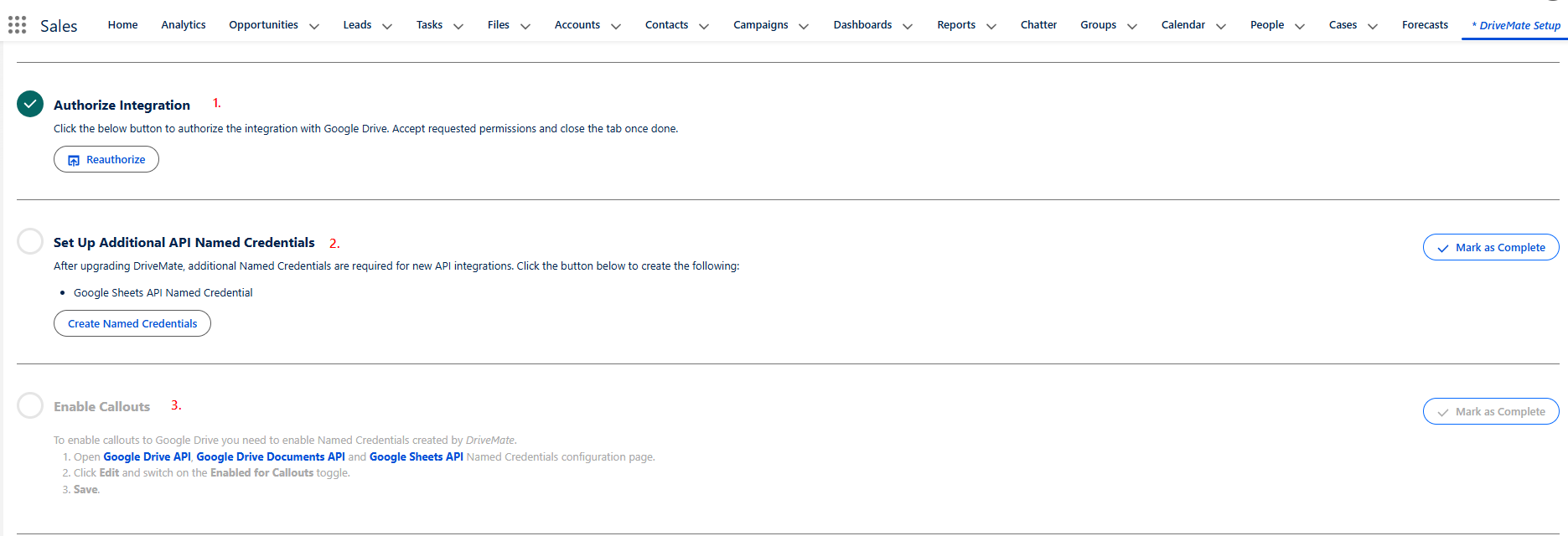
Navigate to the DriveMate Setup page and execute the below manual steps:
- Authorize Integration - You need to reauthorize the integration to allow DriveMate to access Google Documents API.
- Set Up Additional API Named Credentials - Use the button under this step to create a named credential metadata used to access the Google Sheets API.
- Enable Callouts - Follow the instructions to activate the named credential created above.
 note
noteIf you do not see these manual steps on the setup page, clear your browser cache and refresh the page.